
Tablecloth
IntelliJ-grade database tools, laid over VS Code.
Tablecloth is a port of IntelliJ Ultimate's Database Tools to VS Code. It connects to PostgreSQL, MySQL/MariaDB and SQLite, shows the schema in a real tool window, runs SQL in consoles with transactions, completion and inspections, and edits data in a DataGrip-style grid that shows you the DML before it runs. I built it because I didn't want to relearn ten years of muscle memory, and it's for anyone else moving from IntelliJ to VS Code who wants to feel at home. It's free and MIT licensed.
It's pre-1.0. Phases 1 and 2 of three have shipped and I use them daily, but the settings format may still change in a minor version before 1.0. The roadmap has what's left.
Tablecloth is an independent open-source project with no affiliation to JetBrains or Microsoft. It uses none of JetBrains' code.
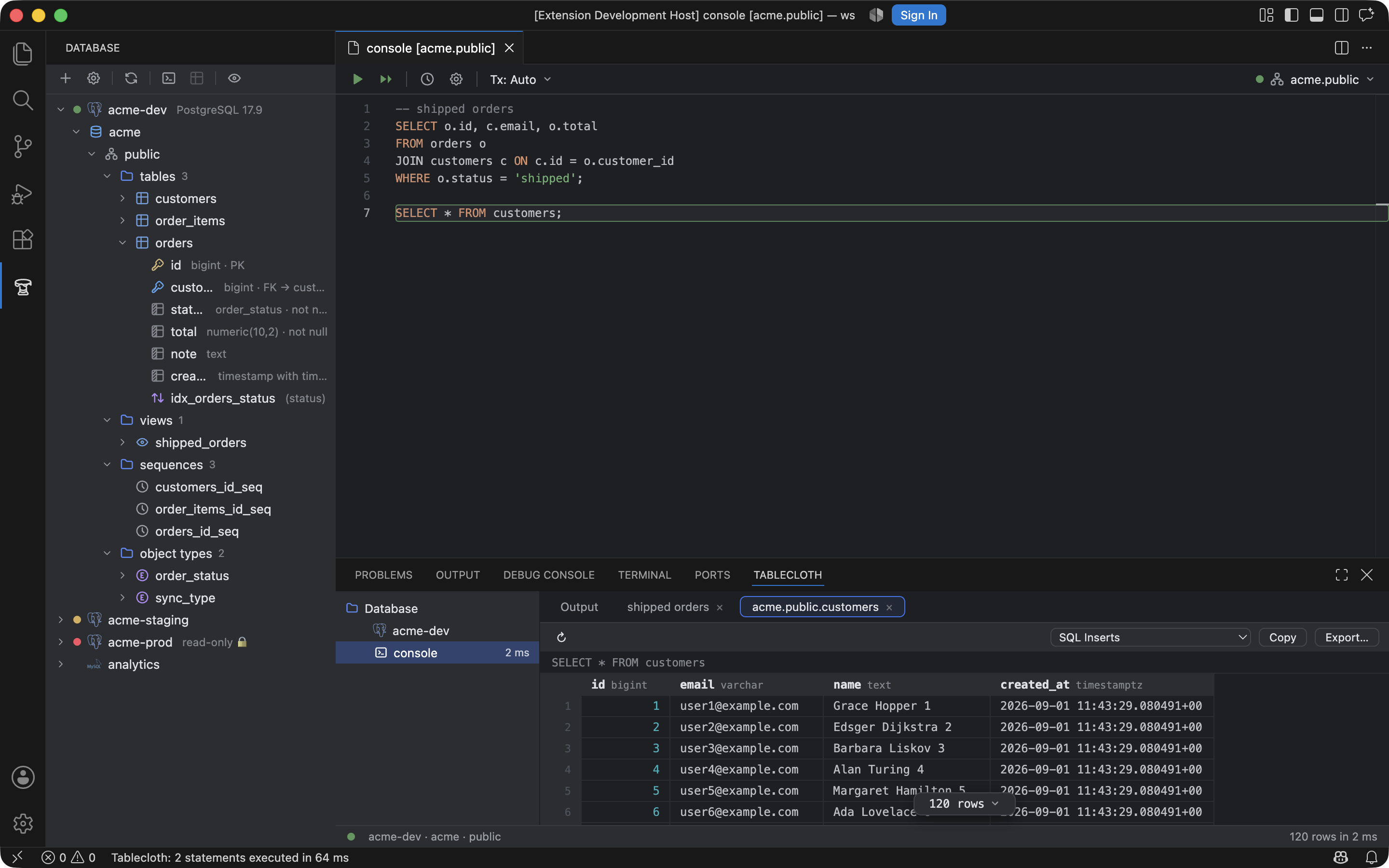
The explorer, a console bound to acme.public, and the Tablecloth panel: result tabs named after a comment or the queried table, the grid below.
Installing
Install from the Marketplace listing, or from a terminal:
code --install-extension sultanofcardio.tablecloth
Drivers ship inside the extension as pure JS and WASM, so there's nothing to compile and nothing to download afterwards. A .vsix for offline installs is attached to every GitHub release.
The first five minutes
- Open the Database view in the activity bar and choose New Data Source….
- Pick a driver, fill in the connection, and press Test Connection. Passwords go to the OS keychain, never to settings.
- Expand the source to browse schemas, tables, keys, indexes, views, sequences, routines and enum types.
- Open a Query Console… on the source and run the statement at the caret with ⌘⏎ (CtrlEnter). Results land in the Tablecloth panel, one tab per statement.
- Double-click a table to open its data. Type into cells, add or delete rows, then Submit (⌘⏎) to see the exact DML before it runs.
- ⌘⇧O jumps to any table, column or routine. Right-click a
.sqlfile and choose Run File on Data Source… to run a script.
Each of those has its own page in the sidebar. If you know Database Tools already, the shortcuts page is probably the one you want first.