
Data editor
Double-click a table (or choose Open Table Data) to open it in the grid. Edits accumulate locally as a change set and nothing reaches the database until you submit, at which point you see the exact statements first. Console results use the same grid.
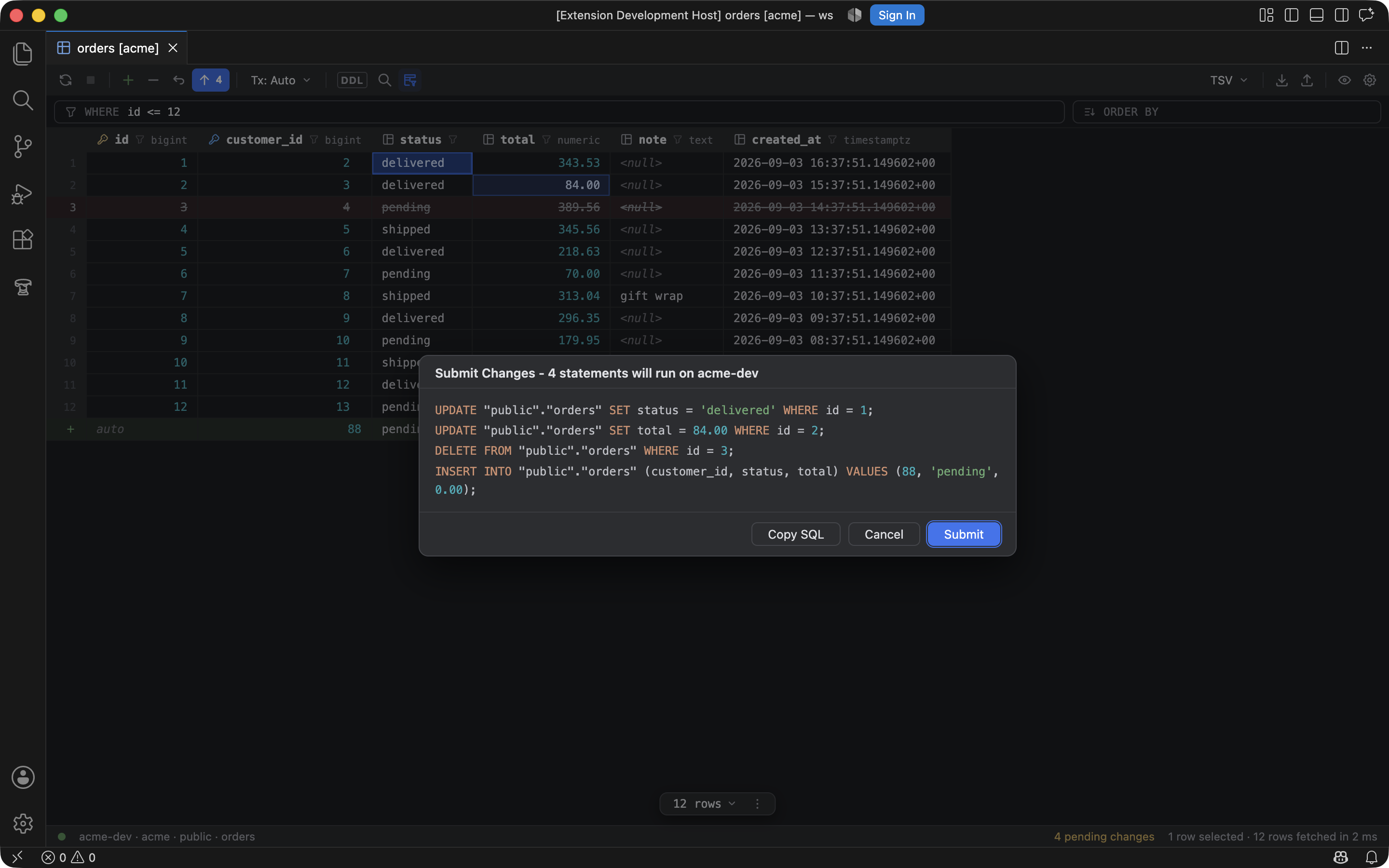
Edited cells in blue, a deleted row struck through, a green added row, and the Submit Changes dialog listing the four statements that will run.
Paging
Pages are 500 rows by default. The floating pager at the bottom moves between them; Page Size in its menu offers 100, 250, 500, 1,000, All, or a custom number, and Set as Default writes your choice to tablecloth.grid.pageSize. The total isn't counted until you ask for it with Count Rows, so opening a big table stays quick. ⌘R reloads the page; with pending edits it asks whether to submit or discard them first.
Editing
- Double-click a cell, or press Enter or F2, to edit it. Esc cancels, Tab moves along the row.
- Edited cells turn blue, added rows green, deleted rows are struck through.
- Add Row (⌘⌥Insert) appends a row; auto-increment and default columns show their placeholders. Clone Row (⌘D) copies the focused row. Delete Rows (⌘⌫) marks the selection.
- Set NULL and Set DEFAULT in the context menu.
- Revert Selected (⌘⌥Z) and Revert All Changes throw edits away.
Submitting
Submit (⌘⏎) shows the Submit Changes dialog with every UPDATE, DELETE and INSERT that will run. The batch is atomic: in Auto mode it runs inside one transaction, in Manual mode inside a savepoint on the open transaction. Every UPDATE and DELETE has to match exactly one row, otherwise the whole batch rolls back and the grid tells you which statement didn't.
Generated SQL quotes reserved words and case-sensitive identifiers for the dialect, and 64-bit integers stay exact. Tables and columns named after keywords round-trip.
Transactions
Each data editor has its own Transaction Mode and Transaction Isolation in the toolbar menu. Manual moves the editor onto a dedicated session and keeps a transaction open across submits until you Commit or Roll back. Console result grids follow their console's mode instead.
Filtering and sorting
- Show Filter reveals the WHERE and ORDER BY fields. Both have an IntelliJ-style lookup (⌃Space, or it pops up as you type) over the table's columns, the keywords valid in that clause, and functions. Nothing completes inside a string literal.
- Clicking a header writes the ORDER BY; Alt-click adds a second column instead of replacing the first.
- The funnel in a header lists the column's distinct values (the first 200) and composes an
IN (...)into the WHERE field. Filter by values on a selection does the same for the values you've selected. - Filters are applied server-side, so they page and count correctly.
Navigation
- The ↗ on a foreign-key cell, or Go to Referenced Row in … in the context menu, opens the referenced table filtered to that row.
- Referencing Rows in … in the context menu opens a table that points at the current row, filtered to the rows that do.
- View Query shows the SQL behind the grid; Copy Query to Console and Copy Query to Clipboard take it with you.
Other views
- Transpose swaps rows and columns, which is the quickest way to read one wide row.
- Table, Tree and Text views of the same result.
- Show Value Editor (⇧⏎) opens a pane for long values, with Edit Maximized for a full-size editor.
- Show Column List (⌘F12) hides and shows columns.
- ⌘F finds text in the loaded page.
Which grids are editable
Table data editors always are. A console result grid is editable when the statement reads one table and its key columns are in the result. Anything else opens read-only and the status bar says why.