
Import & export
Extractors
An extractor turns rows into text. The active one drives Copy in the grid, and Export Data writes the same thing to a file. Both are selection-aware: with cells selected you get those rows and columns, otherwise the whole page. The Data Extractors menu in the grid toolbar follows IntelliJ's grouping:
| Group | Extractors |
|---|---|
| Built-in | SQL Inserts · SQL Updates · SQL-Insert-Multirow · Where Clause |
| CSV family | CSV · TSV · pipe · semicolon, plus Configure CSV Formats… for the null text and quoting (tablecloth.export.nullText, tablecloth.export.csvQuoteAll) |
| Scripted | HTML · JSON · Markdown · One-row · Pretty · Python-DataFrame · XML |
| Export Data only | Excel (xlsx). It's binary, so it doesn't appear under Copy. |
SQL Updates keeps the primary-key values in the WHERE clause even when you didn't select the key column, while SET covers only the columns you did select. If everything you selected is part of the key there's nothing to set, so you get one comment naming the key columns instead of an empty export.
Import Data from File
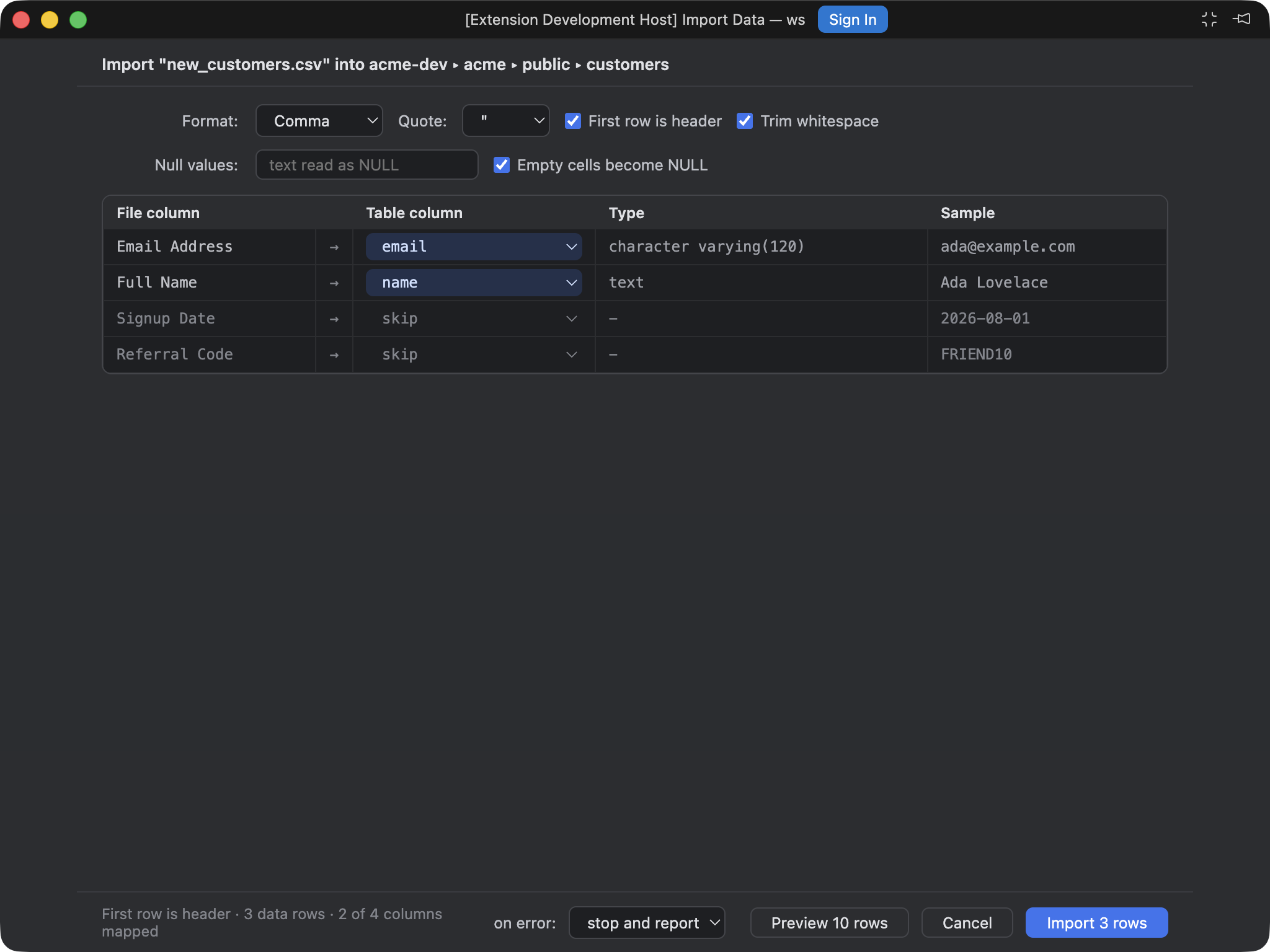
Format settings, the mapping from file columns to table columns with types and sample values, and the row count on the button.
Right-click a table or schema in the explorer and choose Import Data from File…. The dialog opens in its own window (or a tab, per tablecloth.dialogs.openIn).
- Pick the file. The delimiter, quoting and header row are detected; you can override them.
- Map file columns to table columns. Types and sample values are shown next to each. For a schema target, the table is created from the file's columns instead.
- Choose what happens on a bad row: stop and roll back, or skip the row and carry on.
- Press Import. Rows go in batches of 500 inside one transaction. A created table shows up in the explorer straight away.